
Try a sample first
Compress up to the first 8 seconds to compare quality and size. The sample represents only that segment.
Video compression
 Clip Mochi
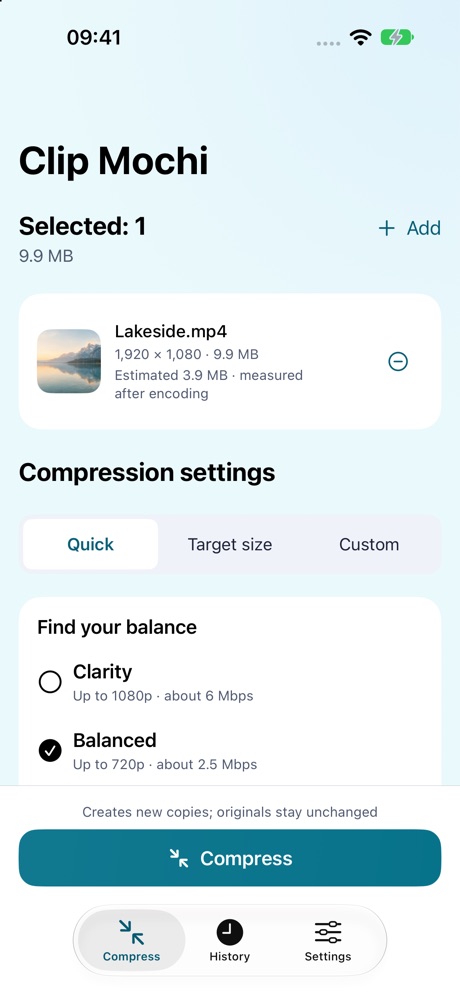
Make videos easier to save and share. Try a short sample before committing to the full export.
THOUGHTFUL DETAILS
Compress up to the first 8 seconds to compare quality and size. The sample represents only that segment.
Choose presets, target size, resolution, frame rate, bitrate and audio options for each queued video.
Play the original and output, check measured file sizes, then save to Photos or export to Files.
Native interface with example data. These apps are preparing for release; interfaces may evolve.
Contact the developer
Something not working, or an idea to share? Write to the developer.
Include the app name and version, iOS version and steps to reproduce. No personal photos, recordings or full ledgers are needed. Redact personal information from screenshots.